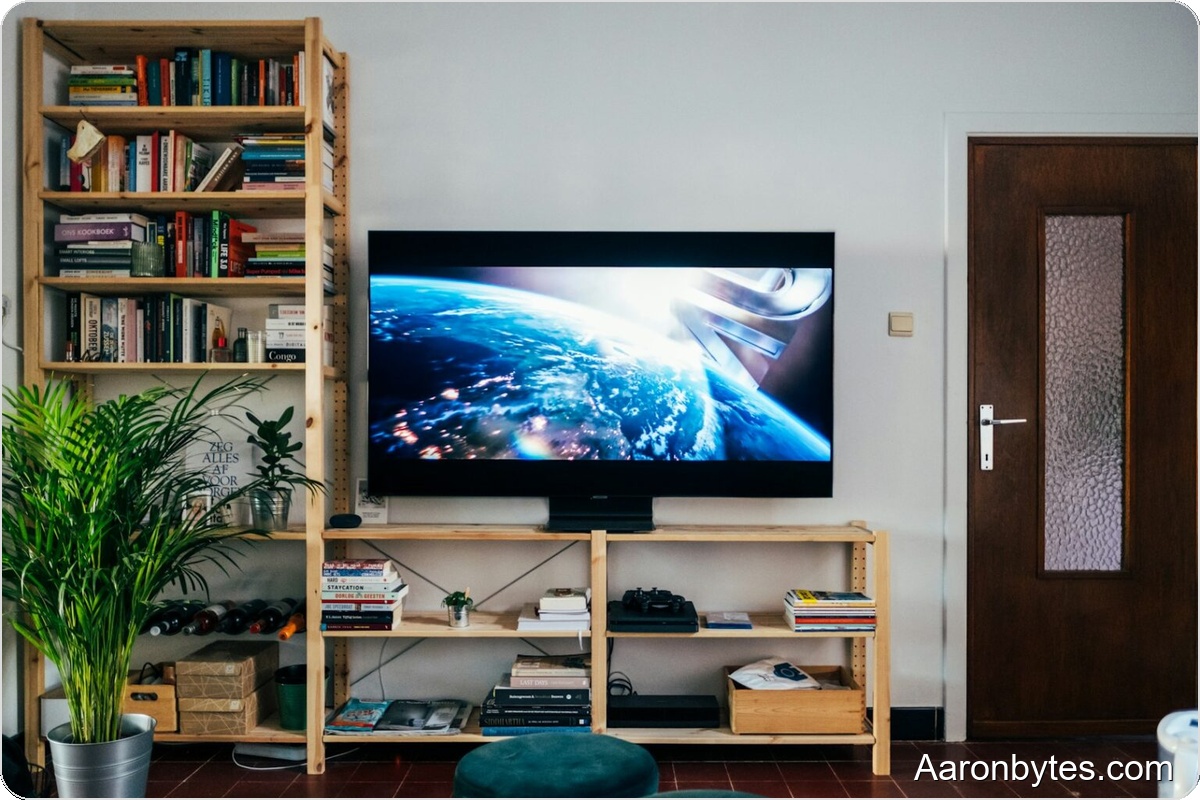
The amount of light your TV emits influences picture quality, eye fatigue, and power draw. Those effects come down to two distinct controls in most TV menus: the backlight setting and the brightness setting. They are related but not the same, and treating them interchangeably can produce poor results.
On OLED TVs each pixel produces its own light when driven by an electrical charge. The menu option often labeled backlight or OLED light adjusts how intensely those emitters produce light.
LCD-LED TVs have a separate light source behind or around the panel that illuminates liquid crystals. That LED backlight can be implemented in many ways, including Edge LED, Direct LED, or FALD, and those approaches determine how effectively the set can dim specific screen areas to achieve deeper blacks.
Backlight controls the light output of OLED pixels or the LED source behind an LCD panel. Brightness is a separate control that adjusts shadow detail and black level for the currently selected backlight output. Some manufacturers compound the confusion by labeling backlight options as panel brightness or OLED brightness, but they remain different functions.
How to set your TV backlight?
Open the picture settings and locate the backlight control; on some models it may be called brightness or OLED light, so watch for naming differences.
There is no single optimal number because the right value depends on the TV model, the room, and how you watch. Still, there are practical guidelines you can follow.
In very bright rooms or for daytime viewing, increase backlight toward its maximum to show the panel’s full potential, especially for HDR content. That boost has two trade-offs. It raises power consumption and, for OLED sets, increases pixel wear and the risk of image retention or burn-in.
Use higher backlight selectively. For low-content uses such as news or game shows, you can run OLED backlight at one-third to one-half of maximum and reserve top output for movies and HDR series.
On LCD TVs, an excessively high backlight makes the picture look washed out, with pale colors and grayish blacks. Set the backlight too low and you will lose detail in shadowed areas and midtones, which is especially noticeable in bright rooms.
For evening or near-dark viewing, lower backlight values save energy and extend panel life. A practical approach is to display a calibration pattern with dark areas, start at a low backlight setting, and raise it until the shadow detail looks natural and comfortable to your eyes.
If backlight is too high in a dark room the image will be uncomfortably bright, crush dark details, and can lead to eye strain over long sessions.
Additional considerations
Many modern TVs include automatic brightness or ambient light sensing that adjusts backlight based on room illumination. That feature can make viewing more convenient when light conditions change frequently.
Keep in mind ambient sensors are not always perfectly accurate. If you demand pixel-perfect picture quality, manual adjustment of backlight and brightness to personal preference will usually yield better results.
Finally, proper backlight setup improves both image quality and energy efficiency. That matters more on larger sets and for TVs that run many hours per day.