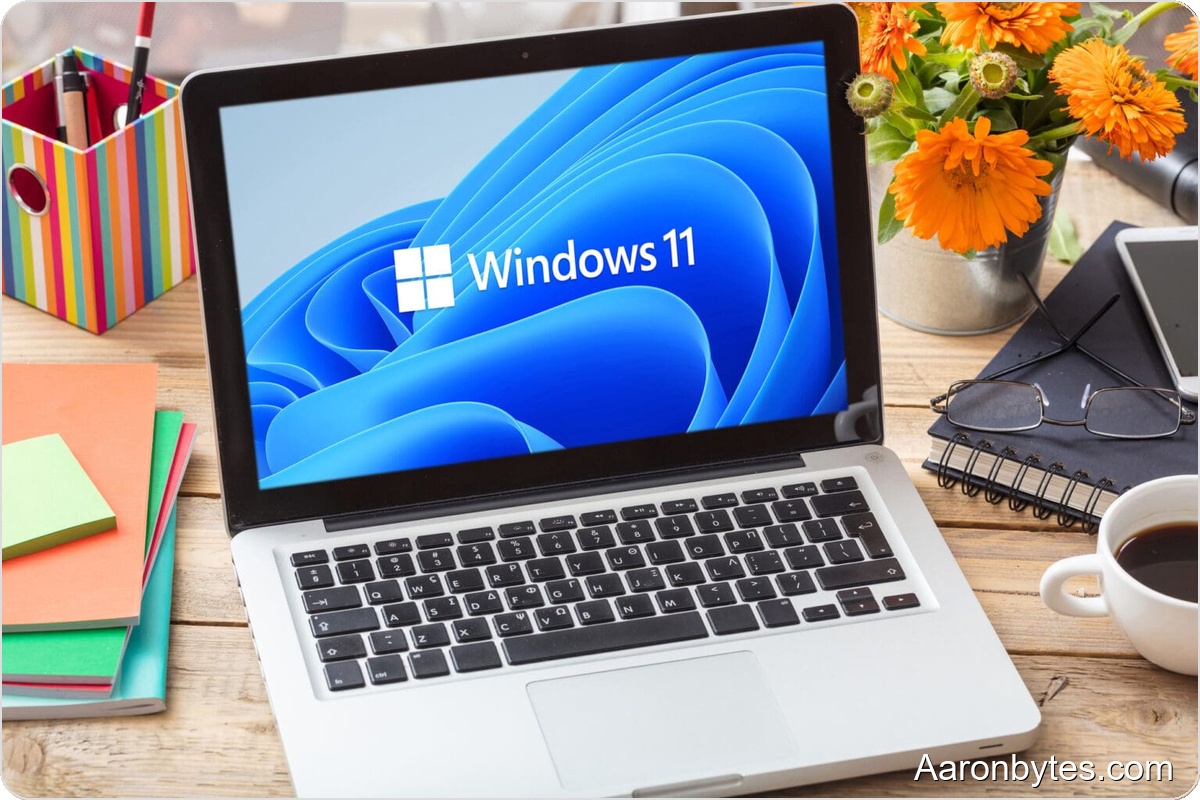
A new Windows 11 PC starts life as a blank slate, and the choices you make in the first hour determine whether it will be a reliable partner or a long-term source of frustration.
You remember that mix of expectation and nervousness when you first booted a new machine and watched the Windows logo appear. Most people make a few critical mistakes in those early minutes, and those mistakes can stick around for months or years.
Windows 11 introduced a number of changes since previous versions. Some are obvious, others are tucked away deep in the settings, and those hidden options are often the most important.
Microsoft account: convenience or a trap?
On first boot, Windows 11 pushes you to sign in with or create a Microsoft account. That nudge is intentional. Microsoft benefits from synced settings and behavioral data.
If you like syncing settings across devices and using cloud services, sign in. If you prefer a local account, there is a straightforward option: disconnect from the internet during setup. The installer will then offer an offline account. It is a simple, legal workaround that Microsoft does not emphasize.
Privacy: defaults work against you
This is where most of the damage happens. Windows 11 ships with many data-collecting options enabled by default: location tracking, microphone and camera access for apps, personalized advertising, and diagnostic data collection.
Most people click through the initial screens without reading and later wonder why ads seem to show up about things they just talked about. Go to Settings → Privacy & security and methodically review each entry. Turn off advertising ID, limit diagnostic data to the minimum, and check which apps can access sensitive features. It takes about fifteen minutes and returns peace of mind.
Bloatware: the digital weeds
New OEM PCs often resemble a garden overrun with weeds. Preinstalled apps you never asked for—trial antivirus software, gaming platforms, and vendor utilities—consume space and often run in the background.
When people ask why their computer feels slower after a month, the answer is frequently all that unwanted software. Uninstall anything you do not recognize or need. Windows 11 includes Microsoft Defender, which is sufficient for most everyday users.
Updates: a double-edged sword
Updates are essential to security, but Windows has a habit of installing them at the worst possible moment, like just before a video call. In Settings → Windows Update you can set active hours so the system avoids restarting during your busy times. This small step prevents major headaches.
Backups: the thing everyone forgets
Most people only start worrying about backups after they lose data. Windows 11 provides built-in File History and the option to back up to OneDrive. Configure backups right away while you still have the time and patience; future-you will be grateful.
Wrap-up
Configuring Windows 11 properly is not rocket science, but it does require a little time and attention. That initial investment pays back in a faster system, stronger privacy, and fewer problems. It is often the difference between people who love their computers and those who merely tolerate them.