

Why Most Backup Advice Misses the Mark?
I’ve been helping people recover lost data for over a decade, and the most common phrase I hear is “I thought I was backed up.” That false sense of security is what really costs people—lost family photos, years of tax documents, entire business records.
The YouTube video I watched on this topic (from the Recovery to Data Recovery channel) touches on the basics: built-in tools, cloud sync, and a data recovery safety net. But it skips several practical, real-world details that can make or break your backup strategy.
Let’s clear those up. You don’t need to be a tech wizard to protect your data. You just need a few deliberate steps, and I’ll walk you through every one of them.
The 3-2-1 Backup Rule (And Why “3 to One” Isn’t Enough)
The video mentions the 3 to one strategy – but that’s a slight misstatement. The actual rule is 3-2-1:
- 3 copies of your data (one primary + two backups)
- 2 different types of storage media (e.g., external hard drive + cloud)
- 1 copy stored offsite (physically away from your computer)
Why does the “2 different media” matter? Because if all your backups are on hard drives, a single power surge could take them all out. If one is on an SSD and another is in the cloud, you’re insulated.
A mistake I see all the time: People buy two external drives and back up to both, then keep them in the same desk drawer. If your house floods or gets burgled, both are gone. The off-site copy is non-negotiable. That could be cloud storage, a safe deposit box, or a drive at a friend’s house.
The video also says “three copies” but doesn’t clarify that the original copy counts. So if you have your laptop’s internal drive, an external backup, and a cloud backup, you have three copies. That’s exactly right.
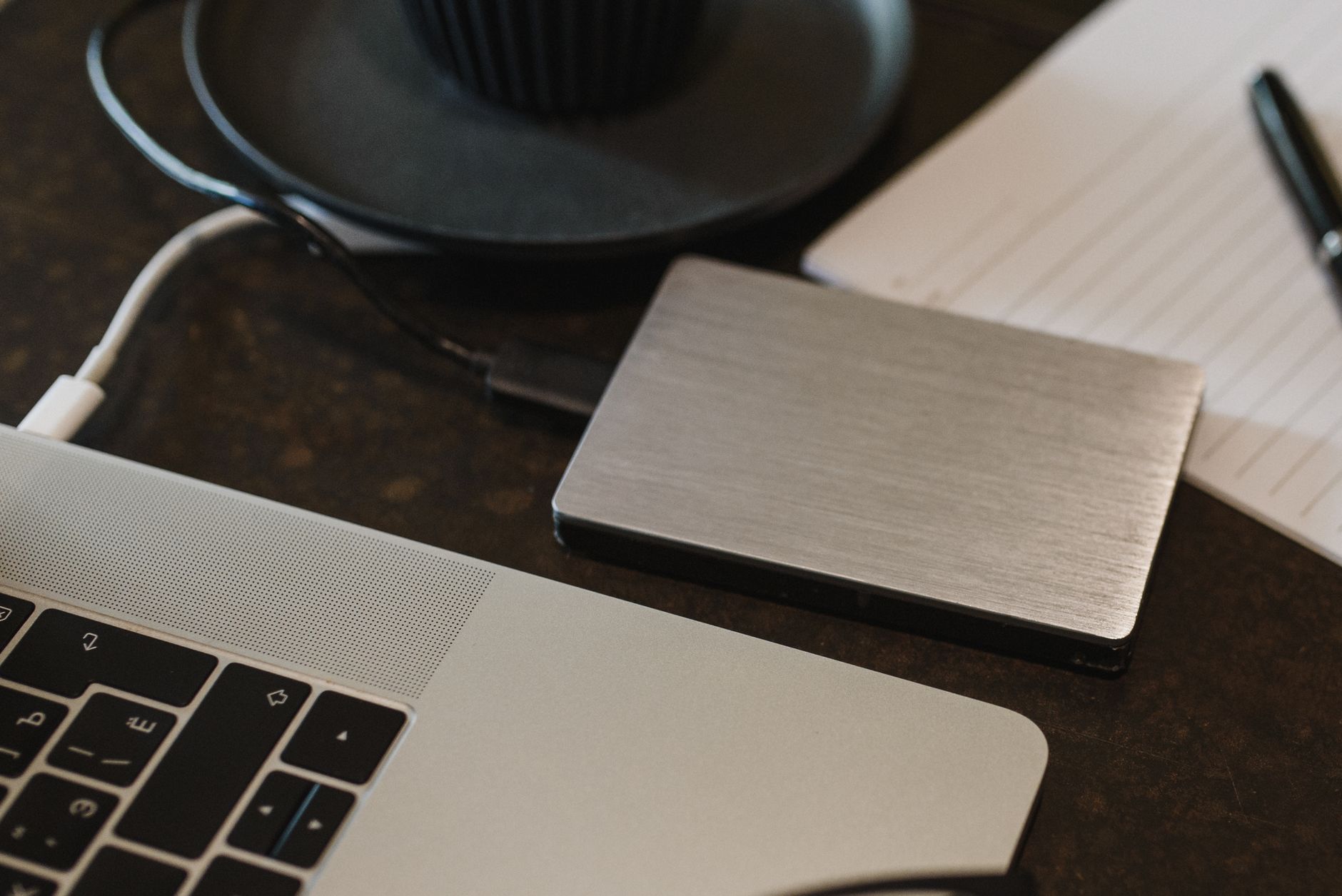
Built-in Backup Tools: Windows File History & Mac Time Machine
The video walks through setting up both, and those steps are solid. But there are a few nuances that will trip you up if you’re not careful.
Windows File History (Windows 10/11)
The Settings path mentioned in the video is correct for Windows 10/11 (Settings → Update & Security → Backup). But in Windows 11, it’s slightly different: go to Settings → Accounts → Windows Backup (or search “Backup settings” in the Start menu). The “File History” option is still there under “More options.”
What the video didn’t tell you:
- File History only backs up files in your User folders (Documents, Pictures, Desktop, etc.) by default. If you have data outside those folders – like a project folder on D: drive – you need to manually add it in “More options” → “Add a folder.”
- The backup drive needs to be NTFS formatted to use File History. If your external drive is exFAT or FAT32, Windows won’t let you set it up. Most pre‑formatted external drives are NTFS, but check.
- You can change the backup frequency from the default “every hour” to “every 10 minutes” if you work on critical files all day. But be aware this will use more space and may wear the drive faster.
Mac Time Machine
Time Machine is elegant, but many users don’t realize it automatically deletes old backups when the drive fills up. It keeps hourly backups for the past 24 hours, daily for the past month, and weekly for everything older. Once the drive is full, it starts pruning the oldest weekly backups. So your backup history is not infinite – plan accordingly if you need to recover a file from two years ago.
The video also shows the “Encrypt backups” option. Do not skip this if your laptop is portable. If you ever have your backup drive stolen, an unencrypted backup gives the thief access to everything you ever saved. But as the video warns, don’t lose that password. I recommend storing it in a password manager – not on a sticky note on your desk.
One thing worth checking: Time Machine will run on battery power by default (you can turn it off in Options). That’s great for laptops, but if you want to preserve battery life on the go, uncheck “Back up on battery power.” Just remember to plug in and manually back up when you get home.
Cloud Backup: Convenience vs. Cost
The video mentions OneDrive, iCloud, and Google Drive, calling out the free storage limits: 5GB for OneDrive and iCloud, 15GB for Google Drive. But here’s the practical trade-off that no one talks about: cloud sync is not a backup.
These services are designed to sync files across devices. If you delete a file on your computer, it gets deleted from the cloud (and all other synced devices) within minutes – unless you use the “recycle bin” or “trash” feature. Most cloud services retain deleted files for 30 days (some up to 60). After that, they’re gone forever.
So cloud sync alone doesn’t protect you against ransomware (which will encrypt your cloud‑synced files) or accidental deletion. To get true cloud backup, you need a service like Backblaze, Carbonite, or IDrive that keeps versioned backups of your files and allows you to recover old versions or deleted files even months later.
Here’s a real example: Last year, a friend of mine had all his Google Drive files encrypted by ransomware. Google Drive’s version history let him restore some, but the ransomware had already overwritten the older versions. He lost months of work. If he had used a proper cloud backup service with unlimited versioning, he could have rolled back to a clean backup from the day before.
The video does suggest combining cloud and local backup – that’s the right move. But don’t mistake free cloud sync for a backup solution.
The Hybrid Approach: Local + Cloud for Maximum Protection
This is the strategy I recommend to everyone. Here’s how it works in practice:
- Primary backup (local): Use File History or Time Machine to an external drive. This gives you fast, incremental backups and full system restores.
- Secondary backup (cloud): Use a cloud backup service (not sync) for your critical data. Backblaze costs about $9/month unlimited. IDrive starts at $79/year for 5TB.
- Critical files only: For your absolutely most important files (passport scans, tax returns, irreplaceable photos), keep a third copy on a USB flash drive in a safe or at a friend’s house.
That covers the 3-2-1 rule perfectly.
| Backup Method | Cost | Speed | Security | Accessibility |
|---|---|---|---|---|
| Local (external drive) | One-time $50-150 | Fast (USB 3/Thunderbolt) | Physical theft or damage risk | Only when drive is connected |
| Cloud sync (OneDrive/iCloud) | Free up to 5-15GB, paid beyond | Depends on upload speed | Encrypted in transit, but sync deletes files | From any device with internet |
| Cloud backup (Backblaze/IDrive) | $9/month or ~$80/year | Slower initial upload, then incremental | Versioned, encrypted, offsite | From any device, can restore files |
| Hybrid (local + cloud backup) | $130-250 upfront + $100/year | Best of both | Two layers of protection | Local fast restore + remote access |
How to Actually Test Your Backups (This Is Where Most People Fail)
The video says “test your backups,” but doesn’t tell you how. Here’s the simple, foolproof method:
- Pick a random file you haven’t opened in months, preferably one that’s critical (like a PDF of your will or a family photo).
- Delete it from your computer (or move it to a temp folder if you’re nervous).
- Restore it from your backup. Using File History: right‑click the folder where it was, select “Restore previous versions.” Using Time Machine: enter Time Machine, navigate to the file, and click “Restore.”
- Open the restored file. Confirm it’s not corrupted. Check the date stamp matches.
Do this once a quarter. I set a recurring calendar reminder for the first day of each season. It takes 5 minutes and can save you from discovering your backup was silently failing for months.
A real story: I helped a small law firm that had been using an external drive for backups for two years. The drive was whirring along, and Windows said “backup successful” every day. But when their server crashed, they found the backup drive was empty – File History had been failing due to a disk permissions error that never raised a warning. They had zero recoverable data. A simple test a month earlier would have caught it.
What If Disaster Strikes Without a Backup?
The video promotes Recoverit data recovery software as a safety net. I’ve used similar tools (like R-Studio, Disk Drill, and yes, Recoverit). They can work wonders on accidentally deleted files or corrupted partitions, but they are not a substitute for a backup. Here’s the truth:
- If your hard drive physically fails (clicking sounds, no spin), software recovery may not work at all. You’ll need a professional data recovery service that costs hundreds or thousands of dollars.
- Deleted files that have been overwritten are gone forever. The sooner you stop using the drive after deletion, the better your chances.
- AI‑powered scanning tools like Recoverit do find more file types than standard tools, but even their success rate drops significantly for heavily fragmented or encrypted data.
So think of recovery software as an emergency blanket – better than nothing, but not something you want to rely on. The video’s suggestion to have it installed is prudent, but only as a last resort.
Common Mistakes That Wreck Your Backup Plan
Only backing up once. A single backup is not enough. Malware, a power surge, or a flood can take out both your primary drive and your external backup if they’re in the same room.
Never verifying the backup. We covered this above – don’t assume it works just because the software says so.
Using the same drive for backups and other files. I’ve seen people keep their video projects on the same external drive they use for Time Machine. If that drive fails, you lose both your project and the only backup. Keep separate volumes or partitions.
Ignoring encryption. If you travel with a laptop and a backup drive, losing both is a disaster. Encrypt the backup drive (most external drives support hardware encryption or you can use BitLocker/FileVault). Without encryption, your backup becomes a privacy nightmare.
Relying solely on cloud sync. As discussed, sync is not backup. Use a dedicated cloud backup service for versioning and retention.
Frequently Asked Questions
What exactly is the 3-2-1 backup rule?
It means having 3 copies of your data (your working copy + two backups), stored on 2 different types of media (e.g., external hard drive + cloud), with 1 copy kept offsite (away from your home or office). This protects against hardware failure, theft, natural disasters, and ransomware.
Can I use only free cloud storage like Google Drive as my backup?
Not for long-term protection. Free tiers are limited (5-15GB), and sync deletes files when you delete them from your device. For serious backup, use a paid service like Backblaze or IDrive that keeps versioned copies even after deletion. That will cost you around $6-10/month.
How often should I back up?
For most people, daily is a good balance. Windows File History defaults to hourly, which is fine for important work documents. Mac Time Machine backs up hourly automatically. If you work on critical files that change minute‑to‑minute, consider backing up every hour or using a real‑time backup tool.
I don’t have an external drive. Can I back up only to the cloud?
You can, but it’s risky. Cloud backups are slower to restore (especially large files), and your internet upload speed may be a bottleneck. Also, if your cloud provider has an outage or you lose access to your account, you’re stuck. A local external drive ($50-100) is cheap insurance for fast, offline restores.
What should I do if I have already lost data? Can recovery software fix it?
Stop using the drive immediately. Any new writes can overwrite the deleted data. Then try a reputable recovery tool (like Recoverit, Disk Drill, or R-Studio). Success is not guaranteed – it depends on whether the disk is physically okay and whether the data has been overwritten. If the hard drive is clicking, don’t power it on; send it to a professional recovery service.
World Backup Day on March 31st is a great reminder, but a good backup habit runs year‑round. Take 30 minutes this weekend to set it up. Your future self will thank you.